Welcome
Tools made
Tools made
for every editor
Apps and scripts that take the boring part out of editing, so you can spend your time on the edit itself.
In 100% original quality. Free for Windows.
Every clip of your character. Cut automatically. In 100% original quality.
Drag any MKV, MP4, M2TS or MOV file into Rclips, or pick a season folder. That's all the setup there is.
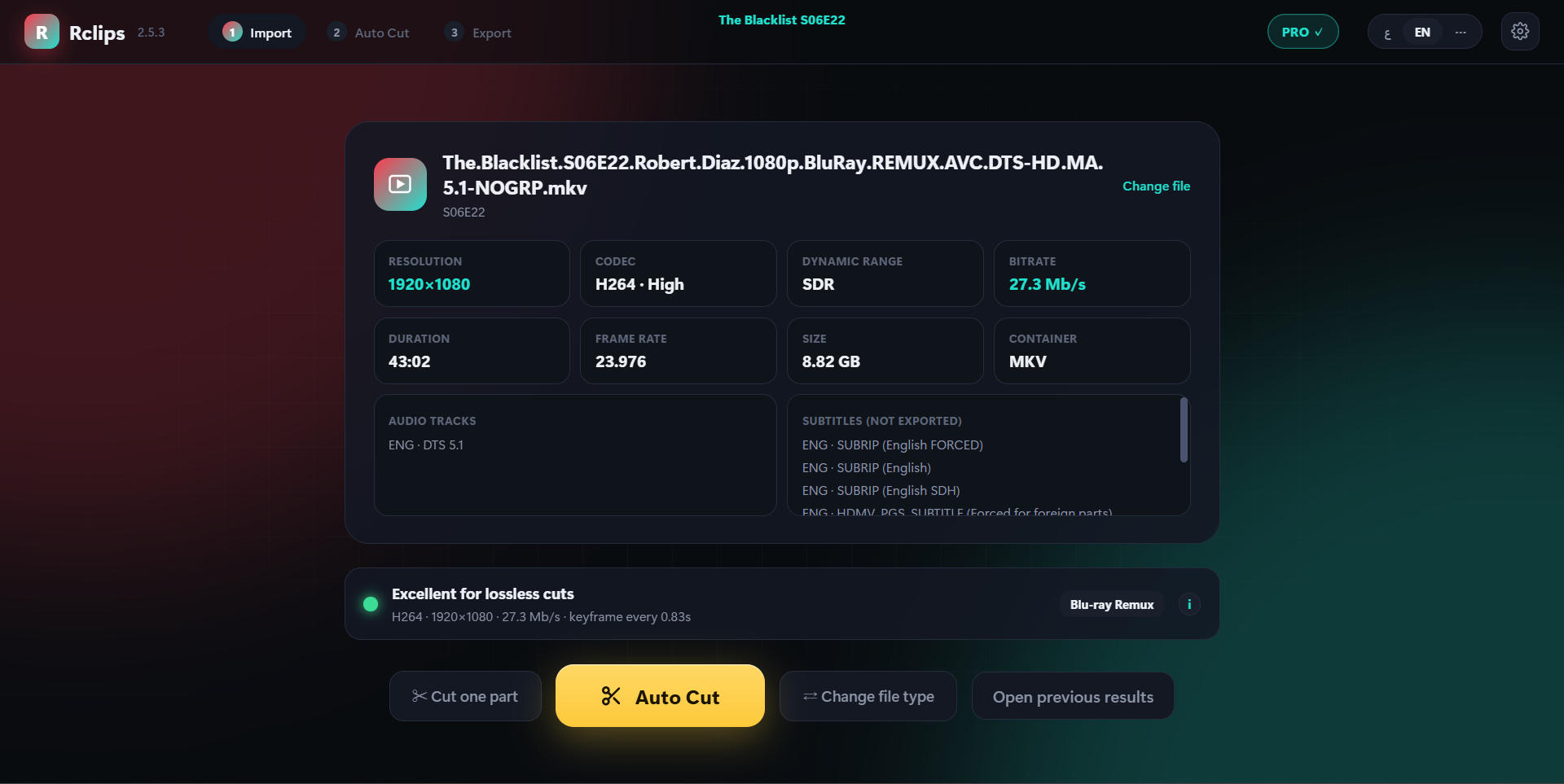
Rclips reads the file for you: resolution, codec, HDR, bitrate, audio tracks and subtitles, and tells you how clean the cuts will be. Already analyzed it? Open the previous results instantly.
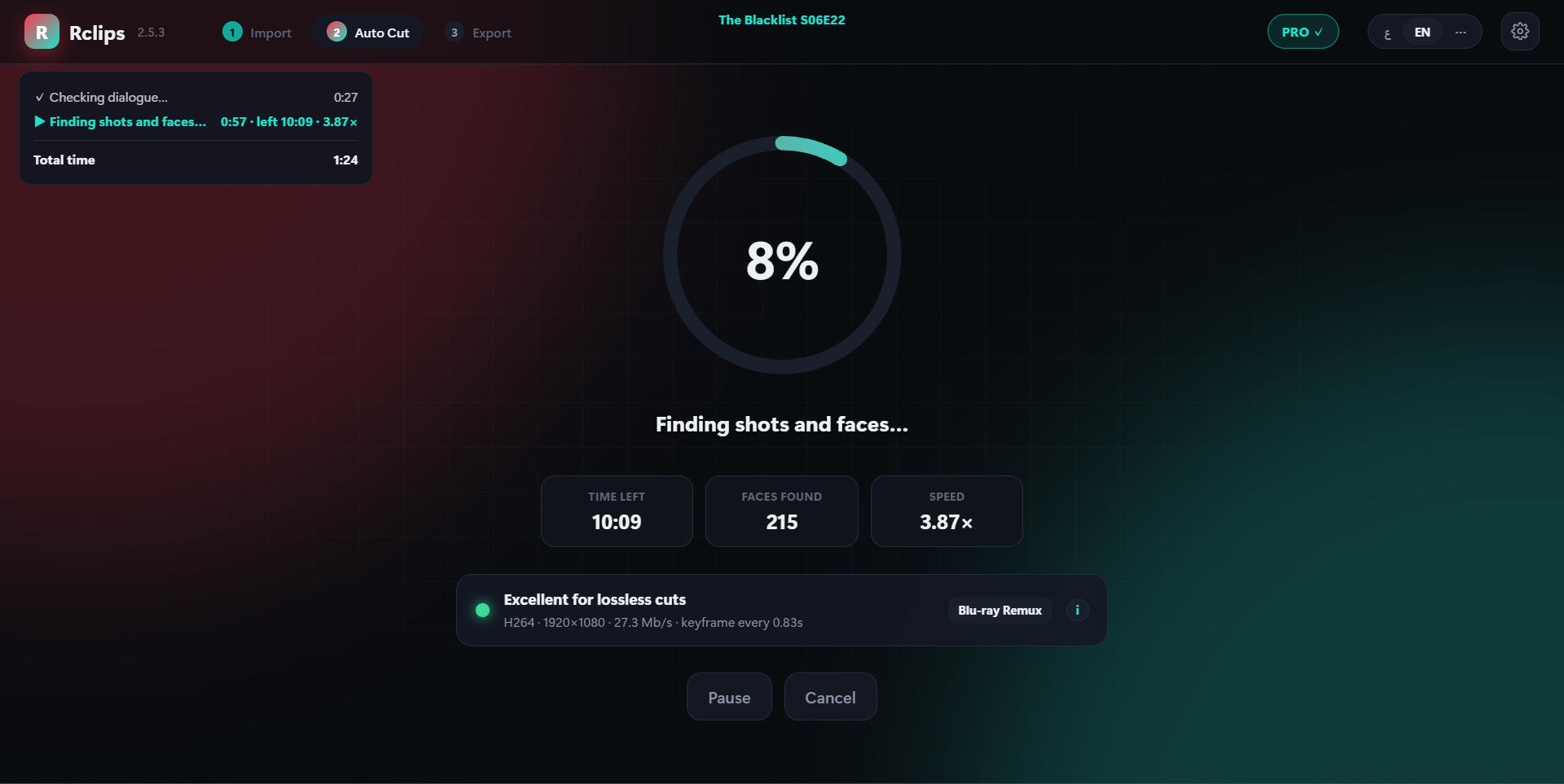
Rclips finds every shot and every face in the episode by itself, and shows you each stage as it works. Pause or cancel any time.
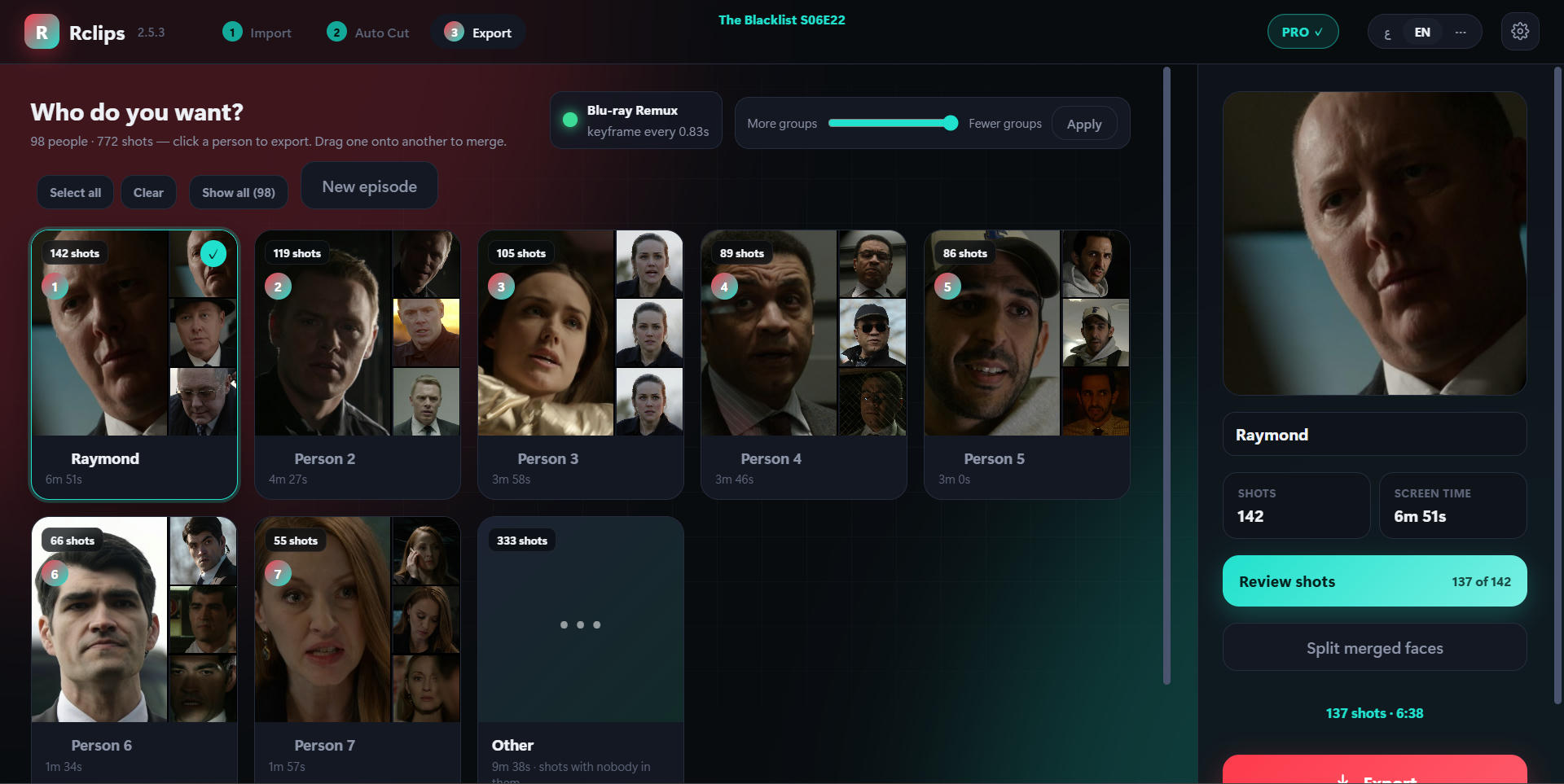
Each person gets their own card with their shot count and screen time. Name them once and Rclips remembers them in the next episodes.
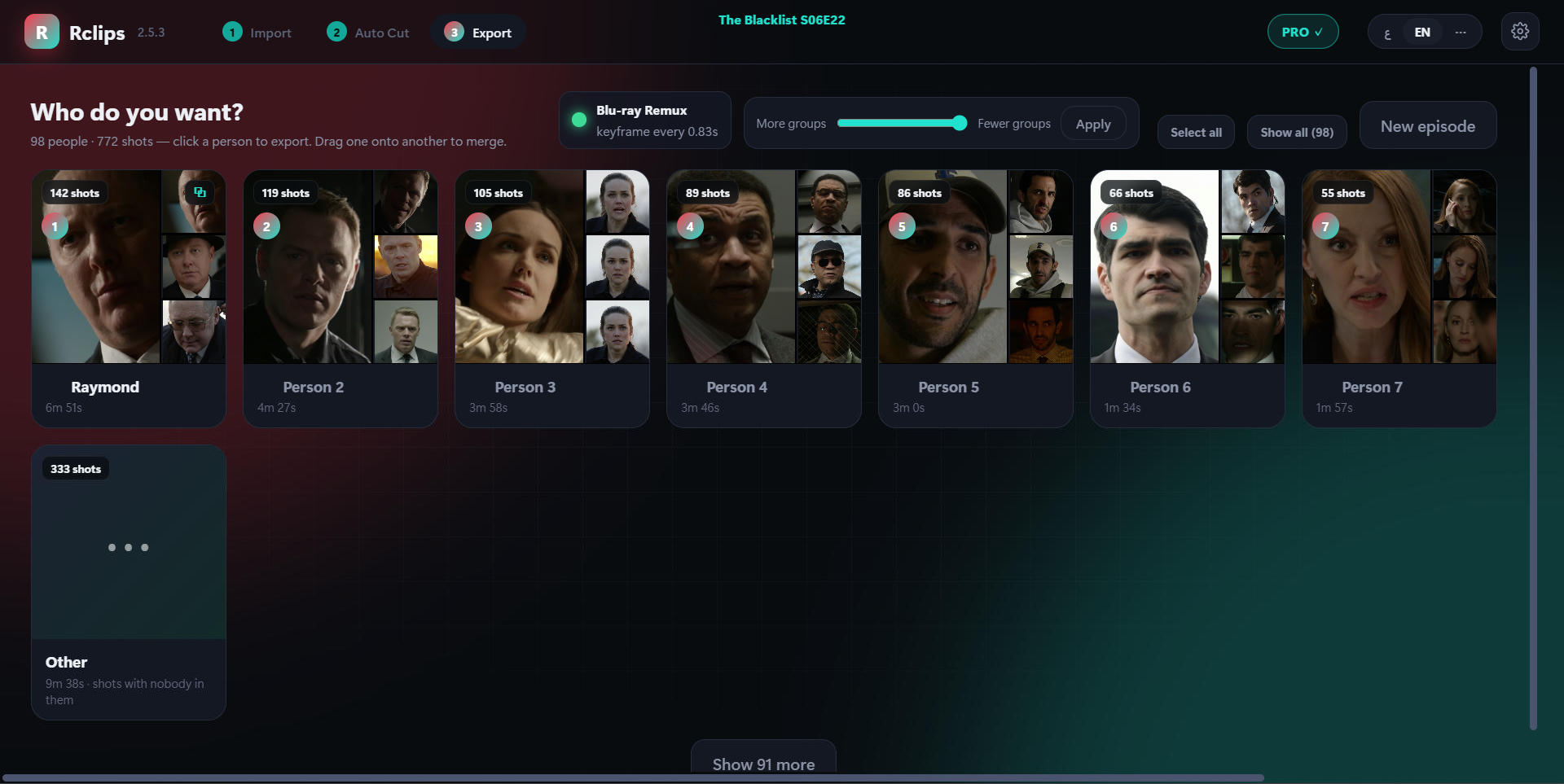
Click a character to see how many shots and how much screen time you'll get, then export in one click.
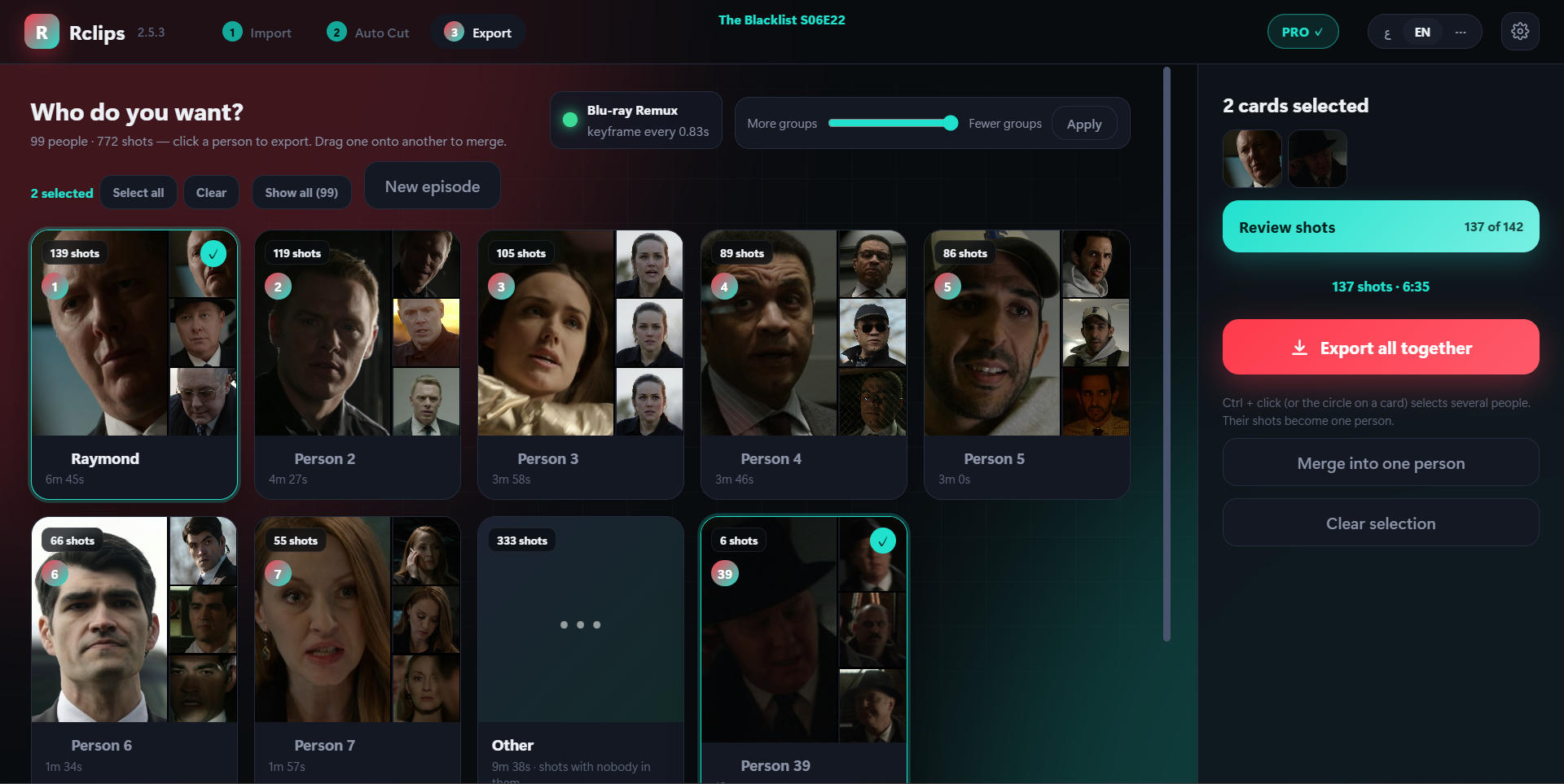
Same person on two cards? Select both and merge them into one. Or pick several characters and export all their shots together. A card that mixes two faces can be split back apart.
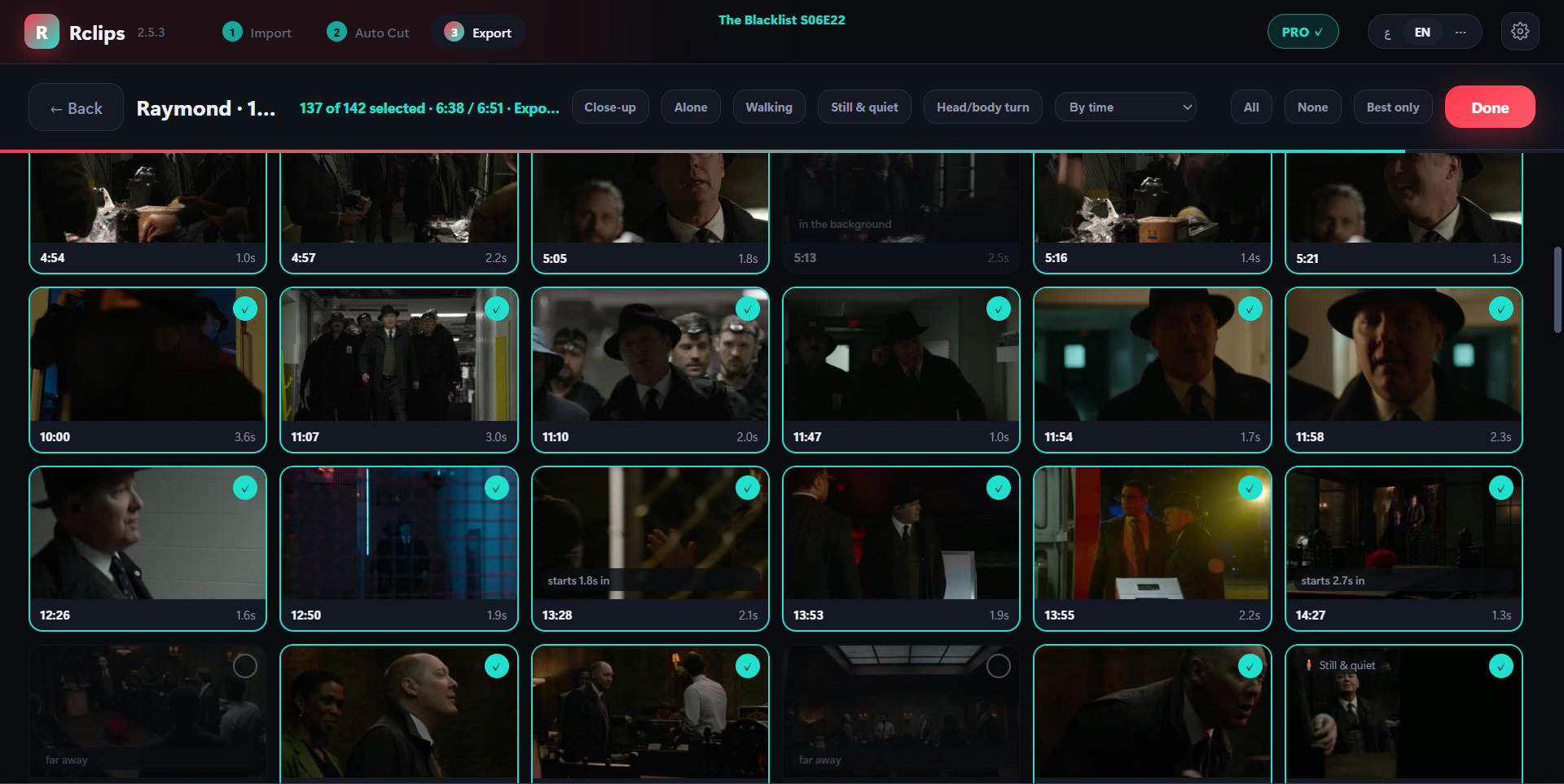
See every clip before you export. Keep or skip any shot, filter by close-ups, alone, walking, still and quiet or head turns, or keep only the best ones.
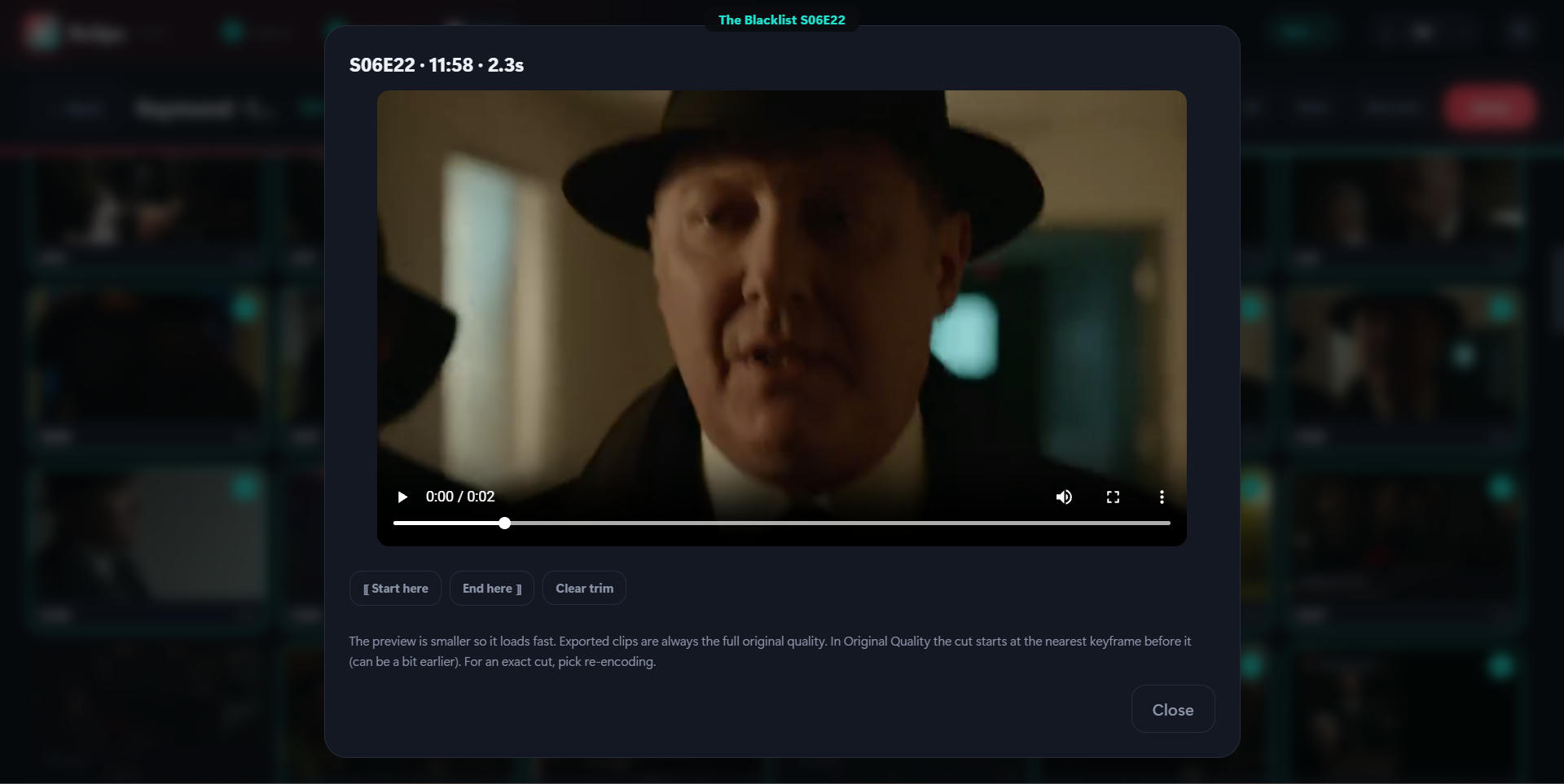
Play any shot right inside Rclips and set where it starts and ends. Exported clips are always full original quality.
No re-encoding: the picture is copied exactly as it is, bit for bit. Export as separate clips or one file, in MKV, MP4 or MOV, ready for After Effects and Premiere. Save your settings to reuse them in one click.
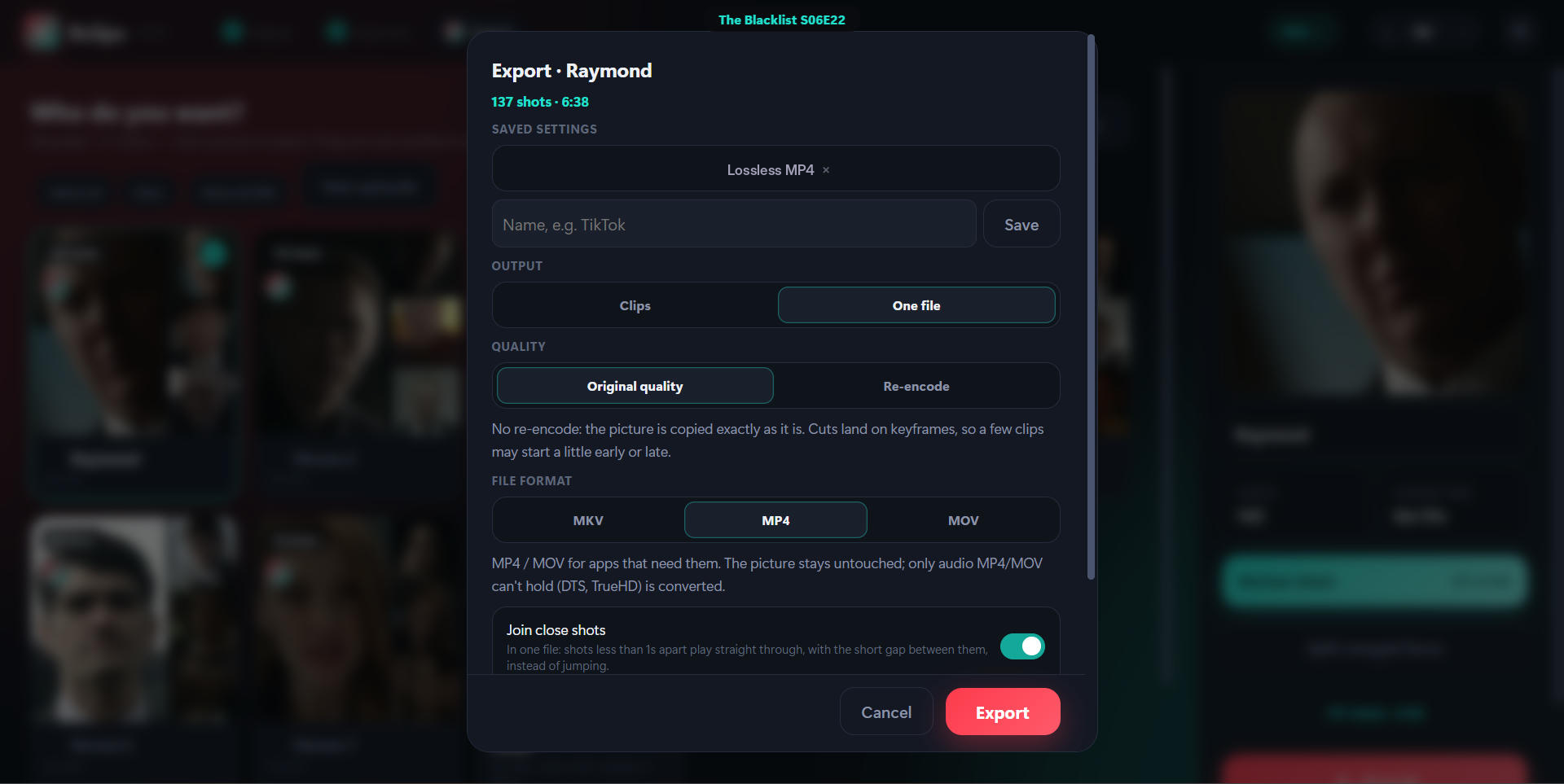
Need every clip to start and end exactly on its shot? Re-encode to H.265, H.264 or ProRes, with your GPU when available.
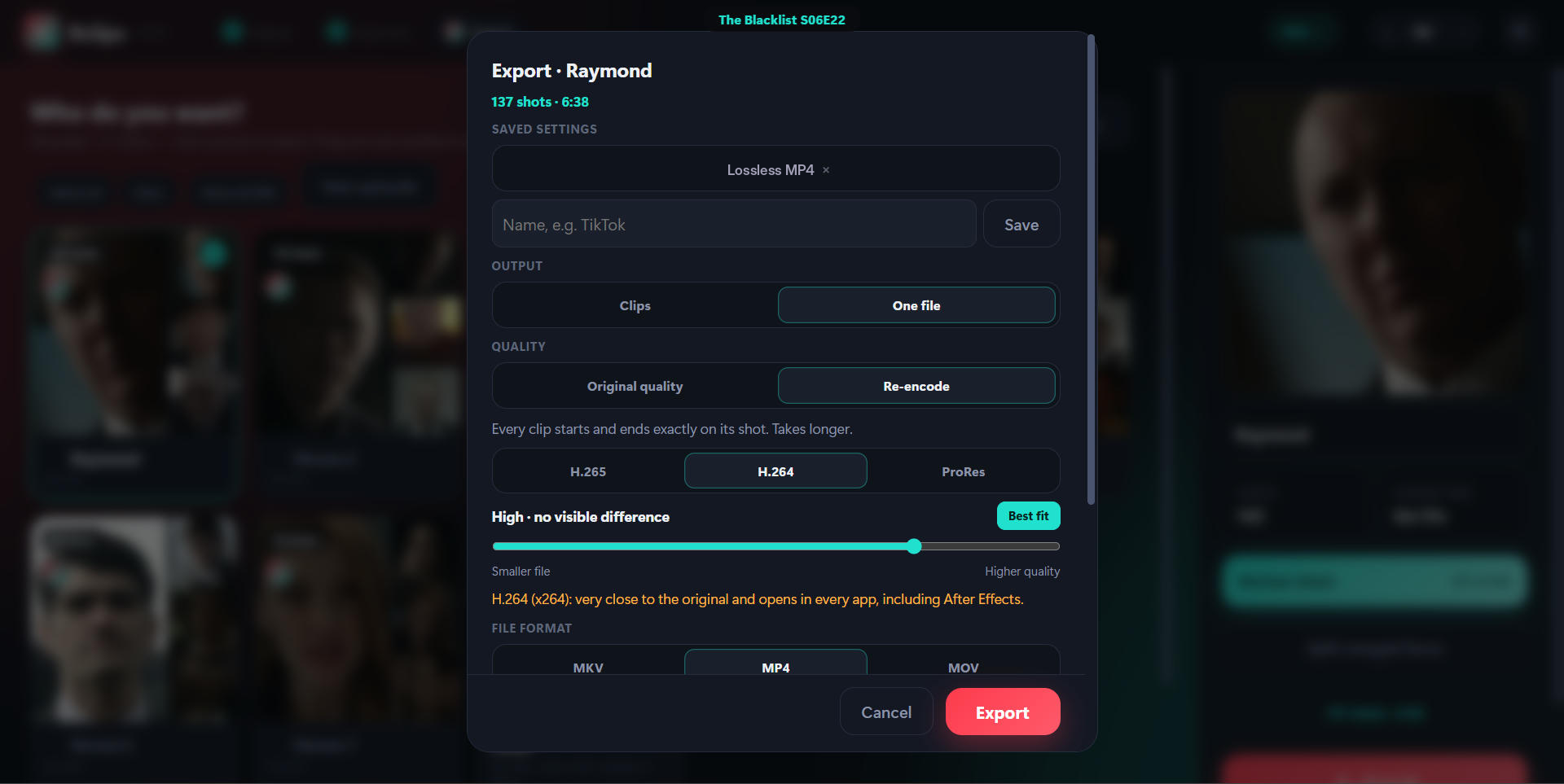
Want one exact moment? Mark where it starts and ends on the timeline, frame by frame, and save just that part in original quality or re-encoded.
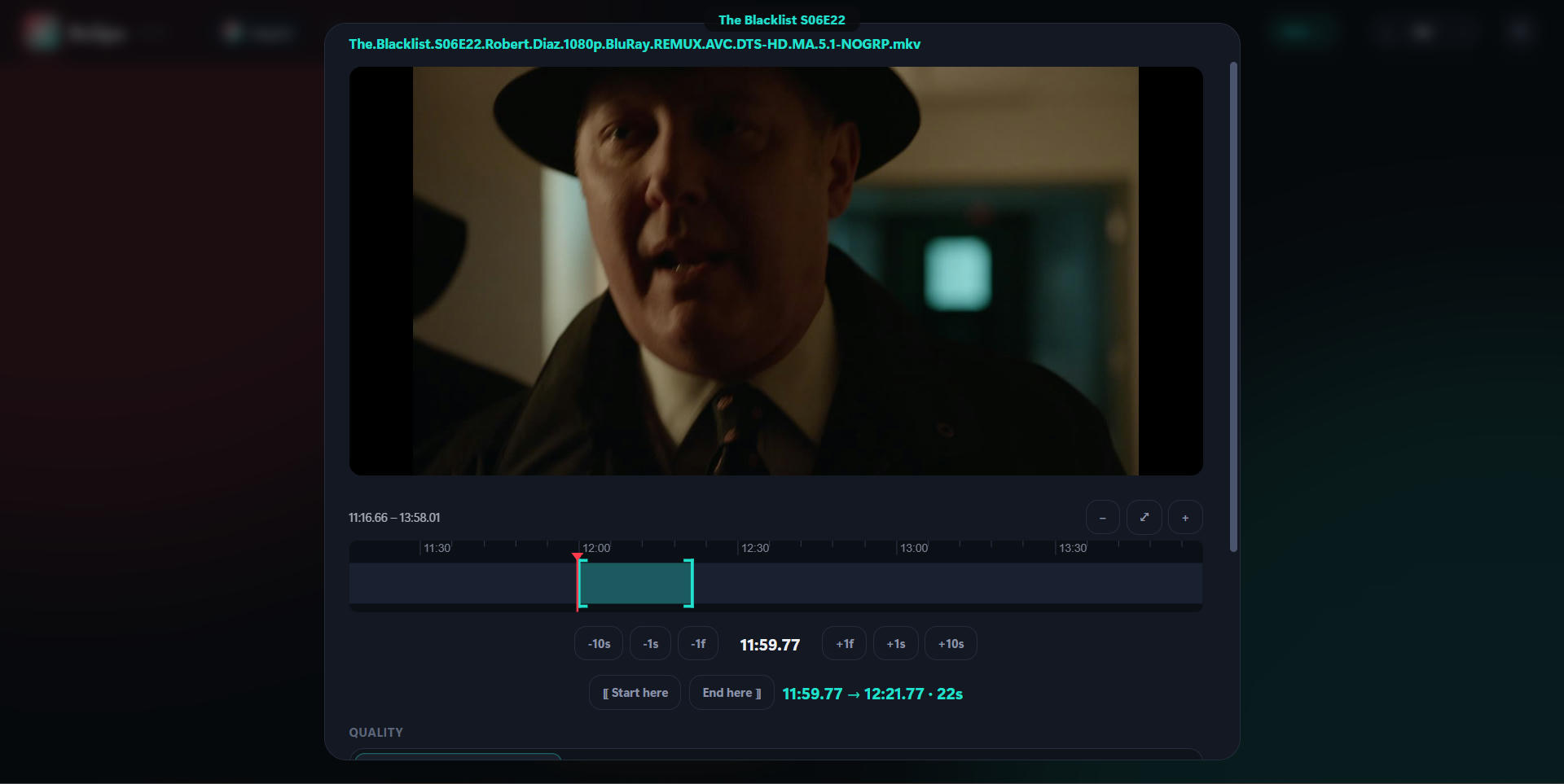
Turn an MKV into an MP4 or MOV without re-encoding, so After Effects and Premiere can open it. The picture stays exactly the same.
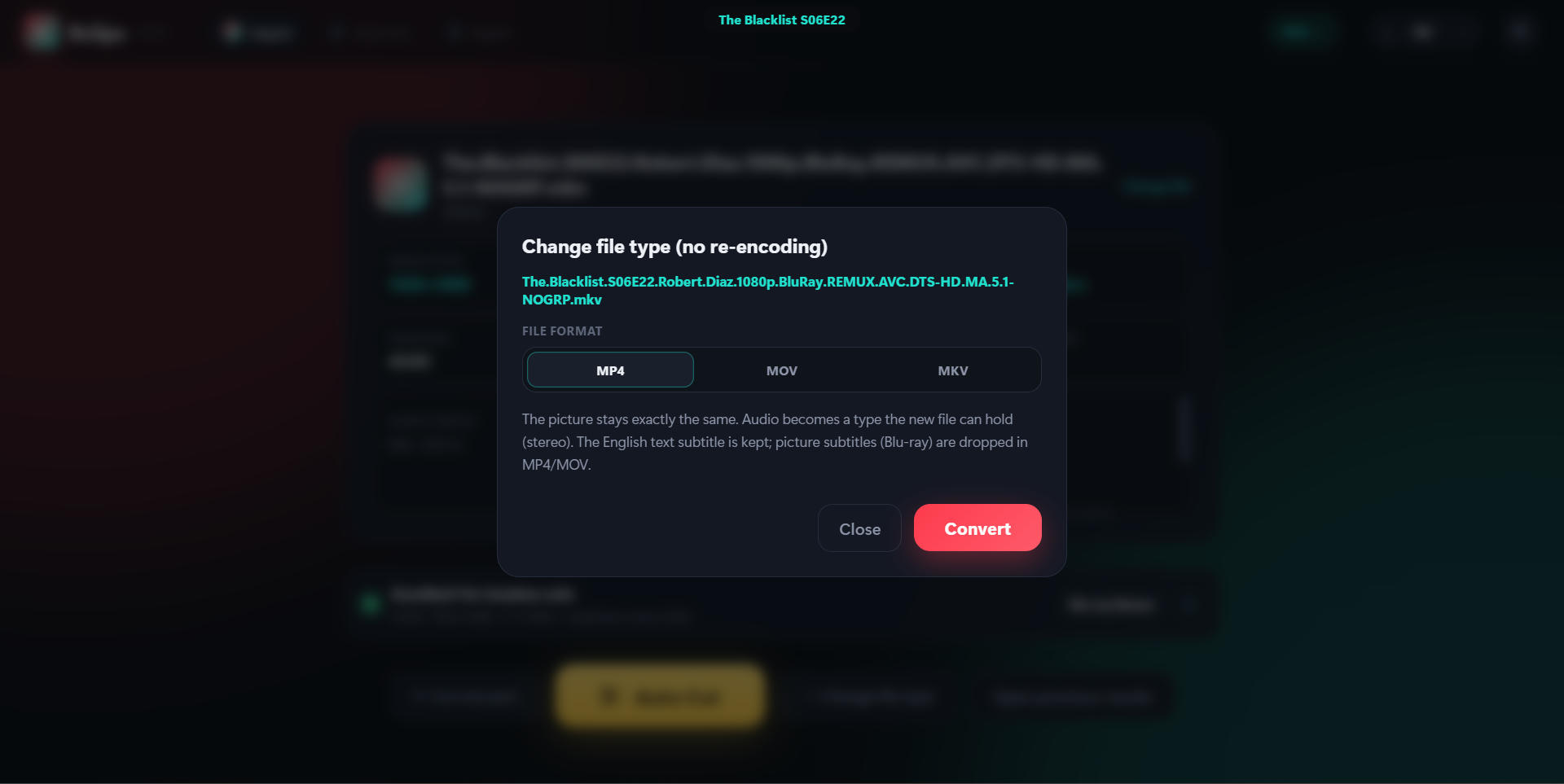
Clips are cut without re-encoding, so the picture is exactly the original.
Need every clip to start on its shot? Re-encode to H.264, H.265 or ProRes.
Pick a start and an end on an Adobe-style timeline and save just that part.
Keep only the part of a shot you want before you export.
Show only shots where your character is walking, turning, or still and quiet.
By time, best first, longest, or biggest face.
MKV to MP4 or MOV without touching the picture, ready for After Effects.
Export every character at once, each into their own folder.
Shots without a known character go into their own group, so you can review them yourself.
Join all the shots of an episode into one file, back to back with no gaps.
Buy on the website, paste the license key in the app, done.
Moving to a new computer? Deactivate the old one yourself from the Polar customer portal.
Updates arrive inside the app and are checked with a digital signature before they install.
Lifetime needs no internet after activation. Monthly and yearly check in online once a day and keep working up to 14 days offline.
English, Arabic, Chinese, Hindi, Spanish, French, Portuguese, Russian, Indonesian, Urdu, German, Japanese, Turkish, Korean and Italian.
One click in the Help menu saves a report to your Desktop to send to support.
About 340 MB instead of 580 MB.
Rclips is currently available for Windows 10 and 11.
Every plan gives you the same full original quality. Pro just removes the limits.
Each key works on one computer. Changing computers? Deactivate it yourself from the Polar customer portal, then activate it on the new one.
That happens with new apps from small developers. Click More info, then Run anyway. Every update is signed and checked by Rclips before it installs, and the installer comes straight from our GitHub releases.
Yes. By default Rclips cuts without re-encoding, so every frame is the original picture. Re-encoding is only used if you choose it.
Episodes in MKV, MP4 or MOV, like Blu-ray Remux and WEB-DL files. Clips can be saved as MKV, MP4 or MOV.
Yes. Save as MP4 or MOV, or use Change file type to turn an MKV into an MP4 that After Effects opens.
No. Everything runs on your computer. Rclips only goes online to check for updates and to activate Pro. Monthly and yearly plans also check in once a day and keep working up to 14 days offline. Lifetime never needs to check in.
After you buy, Polar sends you an email. Tap "Access purchase" in it to see your license key, then paste the key into Rclips and Pro turns on for that computer.
Yes. Deactivate the old computer yourself from the Polar customer portal, then paste your key on the new one.
It is a normal warning for new apps from small developers. Click More info, then Run anyway.
Not right now. Rclips is Windows only.
Need help or have a question? Email Contact us or message us on
Scripts to speed up your editing workflow are on the way. In the meantime, try Rclips.
$ scripts --status loading
Last updated: November 2026
Rclips is sold by RR Editing. You may install the free version on any number of your own computers. A Pro license is for one person and turns on Pro on one computer at a time.
Use Rclips only with videos you have the right to use. You are responsible for what you cut, edit and share.
Payments are handled by Polar, our merchant of record, who also sends your receipt and gives you your license key. Monthly and yearly plans renew until you cancel. If Pro does not work on your computer, contact us within 14 days of buying and we will help or refund you.
Rclips is provided as it is. We work hard to keep it reliable, but we cannot promise it will be free of errors. Always keep your original episodes.
We may update these terms. The date at the top shows the latest version.
Last updated: November 2026
Rclips analyzes and cuts your episodes on your own computer. Videos, faces and clips are never uploaded.
Rclips checks GitHub for updates. When you activate Pro, your license key and a random ID for your computer are sent to check the license. Nothing else is sent.
When you buy Pro, Polar (our merchant of record) handles your name, email and payment details under its own privacy policy. We receive your email and order details so we can support you.
Questions about your data? Contact us.